 |  |
 |  |  |  |  |  |  |
|  | |||||||


 |
| | Thread Tools | Search this Thread | Rate Thread | Display Modes |
|
#1
 15-04-2009, 04:47 AM
| ||||
| ||||
 How to Disable restart now message after Windows automatic update message How to Disable restart now message after Windows automatic update message How to Disable restart now message after Windows automatic update message If you are on a Windows XP system, you are probably very familiar with the automatic updates which interrupt you as you work and prompt you to restart your computer. And if you are like most of us, you keep telling your computer to restart later and later and later. 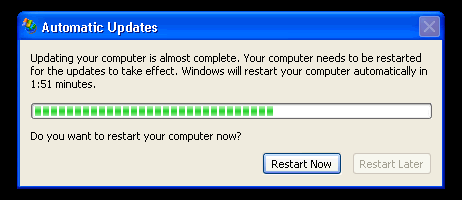 I can’t tell you how many countless remote machine connections I’ve lost and how much work in progress has been thrown away no thanks to the automatic restart in Windows XP after installing a Windows update. No matter if keep telling your dumb machine to “Restart Later,” the nag box keeps popping up and when it detects a slight weakness in your armor, when you are not at your desk for a prolonged period of time - booyah! it’s time to restart system. Well now you can take matters into your own hands by disabling the restart. It’s an option that’s hidden away in the group policy settings for Windows XP Pro users, and XP Home users will need to make a small registry change. After setting this up, you won’t need to worry about the automatic restart kicking in at the most inopportune time so you can restart your PC on your own terms. There are two ways to get rid of the nagging Restart Now message, one of which is preferable over the other: 1. Stop the Automatic Updates Service Go to your Control Panel, then Administrative Tools and then click on Services. 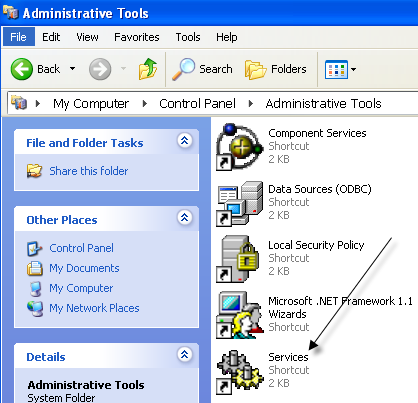 In the list of services, find Automatic Updates, right-click on it and click Stop.  Once you have stopped the service, the nagging message stops also. Then you can reboot when you FEEL LIKE IT. Note that the Automatic Updates service will automatically restart when you reboot, so you will get future updates (and hence have to follow the same procedure again the next time your computer installs updates). 2. Modify Group Policy Settings The problem with the above-mentioned method for disabling Automatic Updates restart message is that it’s a one time fix. A better way is to modify some group policy settings so that your computer will always be updated, but you won’t be asked to restart constantly. To get to the Group Policy editor, click on Start, and then Run and type in gpedit.msc. 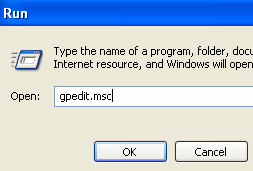 Local Computer Policy Computer Configuration Administrative Templates Windows Components Windows Update 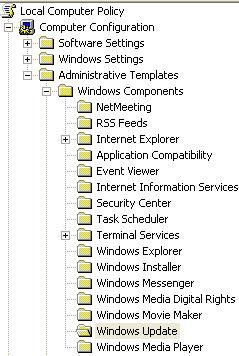 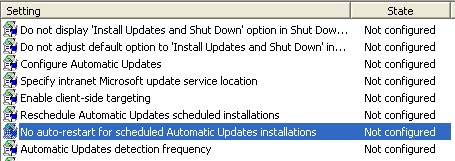 Set it to Enabled and Windows will wait for the logged on user to restart the computer instead of automatically trying to restart. No prompt will be displayed at all, so you will have to remember to restart yourself. Re-prompt for restart with scheduled installations 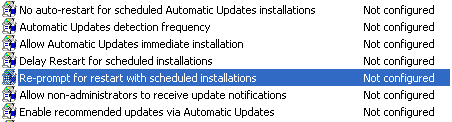 Using this setting, you can configure the restart message to come up again, but at a longer interval. Go ahead and double-click on the setting and set it to Enabled. You’ll see the default value is 10 minutes. Go ahead and change it to something like 1440 minutes, which is one day. This is better if you want to still be reminded, but not so often. 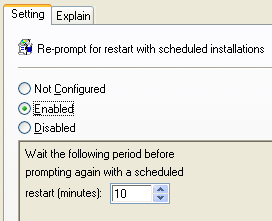 Hopefully, now you won’t see that message anymore and you can do your work without being interrupted every 10 minutes! Enjoy!
__________________ (¯`v´¯) `*.¸.*` ¸.*´¸.*´¨) ¸.*´¨) (¸.*´ (¸.Bzu Forum   Don't cry because it's over, smile because it happened Don't cry because it's over, smile because it happened   |

 .BZU.
.BZU.





|
#2
04-05-2009, 02:31 PM
| ||||
| ||||
 Re: How to Disable restart now message after Windows automatic update message Re: How to Disable restart now message after Windows automatic update message
thanx friend its too gud to listen from you about all this. finally we get rid from the problems
|

 shmsa
shmsa


|
| Tags |
| automatic, disable, message, restart, update, windows |

« Previous Thread
|
Next Thread »
| Currently Active Users Viewing This Thread: 1 (0 members and 1 guests) | |
 Linear Mode

| |

 Similar Threads
 | ||||
| Thread | Thread Starter | Forum | Replies | Last Post |
| How to turn off (Shutdown) or Restart Windows via Remote Desktop | .BZU. | How to ? | 0 | 12-03-2011 09:09 PM |
| Silent Message from SUN.. | Raheel | Islam | 0 | 22-02-2010 04:50 PM |
| A Short Message | momna gull | Quotes | 0 | 10-02-2010 01:03 PM |
| Silent Message... | Raheel | Islam | 1 | 19-11-2009 04:40 PM |
Almuslimeen.info | BZU Multan | Dedicated server hosting
Note: All trademarks and copyrights held by respective owners. We will take action against any copyright violation if it is proved to us.
All times are GMT +5. The time now is 10:31 PM.
Powered by vBulletin® Version 3.8.2
Copyright ©2000 - 2026, Jelsoft Enterprises Ltd.
Copyright ©2000 - 2026, Jelsoft Enterprises Ltd.